How to Make a Burning Bridges AI Video from One Photo
Make a Burning Bridges AI video from one photo. Follow the upload, framing and download steps for a 12-second clip with sound, using 100 credits.
To make a Burning Bridges AI video on burningbridges.lol, upload a clear photo of one person, choose vertical or landscape, sign in, and select Generate video. Each generation uses 100 credits and creates an approximately 12-second video with sound. Preview and download the finished MP4 in My creations. The performance is built in, so you do not need to write a prompt or upload a reference clip.
Make your Burning Bridges AI video
What is a Burning Bridges AI video?
In this trend, a person or character appears in a party performance associated with Drake's Burning Bridges video. People searching for “Drake Burning Bridges AI video” usually want to put a new face into that recognizable scene.
Different generators use different clips, lengths and editing controls. This guide describes burningbridges.lol: one uploaded photo, a preset performance, and a choice of output shape. It does not offer a custom dance, a prompt editor or a multi-person casting panel.
What do you need before you start?
Use a photo of yourself or someone who has agreed to the edit. You can choose your photo before buying credits; submitting a generation requires an account and enough balance.
| Item | On burningbridges.lol |
|---|---|
| Photo | One person in a JPG, PNG or WebP image |
| Upload limit | Up to 10 MB |
| Performance | Built-in Burning Bridges template |
| Length | Approximately 12 seconds |
| Output shape | 9:16 vertical or 16:9 landscape |
| Sound | Included; listen to the completed result |
| Generation cost | 100 credits per video |
| Result | MP4 preview and download in My creations |
These are the product settings checked on October 11, 2026. Review the generator and checkout for the current offer before submitting.
Step 1: Choose a photo with a readable face
Pick a sharp, well-lit photo with one person clearly visible. A front-facing view gives you a useful starting point. Leave enough room around the head and shoulders that neither is cut off by the image edge.
Keep the face clear
Avoid sunglasses, a hand across the face, deep shadows and strong motion blur. Check the actual file at a larger size: a small preview can hide blur or heavy compression. If the face occupies only a tiny part of a group photo, choose another image with one subject.
Give the outfit some room
If you want a jacket or shirt to influence the appearance, include it in the photo. A crop ending at the chin gives the generator little information about the upper body. Small lettering, jewelry and fine patterns can still change during motion, so choose an image where recognition does not depend on those details.
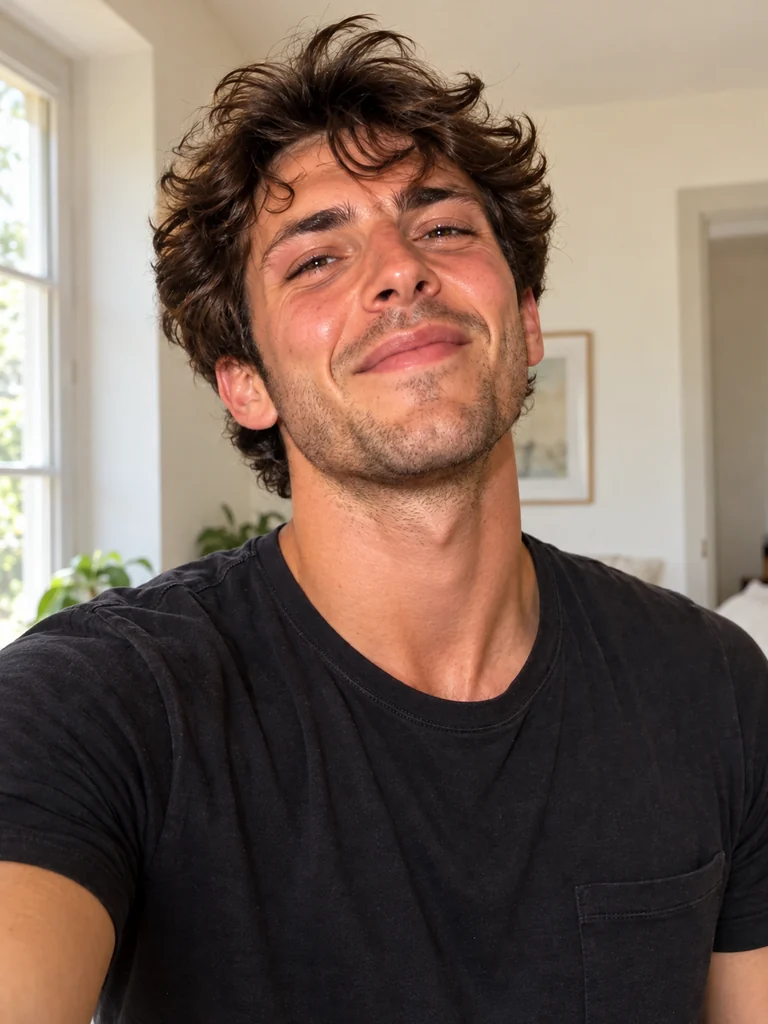
Illustrative portrait for framing. This image is not a tested before-and-after result or a promise of output quality.
Step 2: Upload your photo and choose the video shape
Open the Burning Bridges AI video generator. Drop the image into the upload area or click to browse. Check the displayed photo before continuing. Use Replace if you selected the wrong file, or Remove to start again.
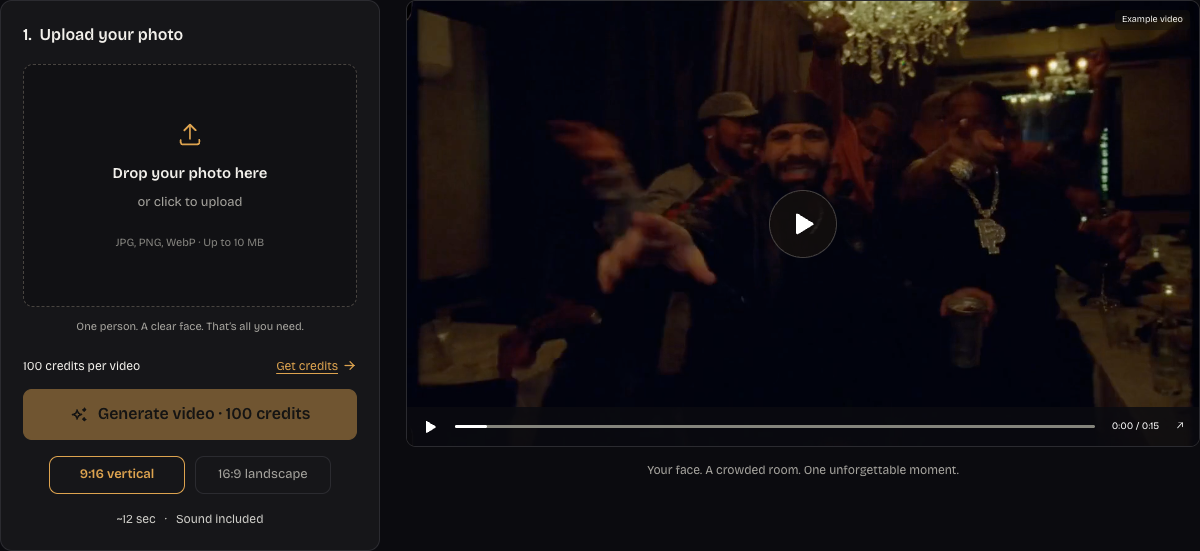
Generator screenshot. The example player is a template preview, not a result generated from an uploaded photo.
Choose the shape before generating:
- 9:16 vertical: a practical starting point when you intend to post a portrait video on TikTok, Reels or Shorts.
- 16:9 landscape: useful when you want a wider view of the party scene or plan to place the clip in a landscape edit.
The shape is selected for that generation. If you later crop a downloaded landscape clip to vertical, inspect the framing: a narrower crop can cut off the person or their gestures. Do not assume one generation supplies both shapes.
Step 3: Sign in and check your credits
If you are signed out, selecting Generate video opens sign-in. A video costs 100 credits. When your balance is too low, the top-up flow lets you choose a pack while keeping your selected photo.
At the time this guide was written, the one-time credit packs were:
| Pack | Price in USD | Credits | Generations at 100 credits each |
|---|---|---|---|
| Starter | $6.99 | 100 | 1 |
| Creator | $9.99 | 200 | 2 |
| Pro | $19.99 | 500 | 5 |
Starter covers one attempt. Creator gives you room to try a couple of photos. Pro has the lowest per-generation price of these three packs, about $4, if you expect to use five generations. These are one-time purchases; check the final amount at checkout. A generation count is a credit allowance, not a guarantee that every creative result will suit you.
Step 4: Generate, then review the entire clip
With your photo, shape and balance ready, select Generate video. The page shows the processing state. Wait for that request rather than clicking again to create another attempt. Processing time can vary; this guide does not promise a fixed completion time.
Open My creations to check progress and find completed videos. Before downloading, play the full result and check:
- The face through movement. Look at turns and close-ups, not just the opening frame.
- Hands and objects. Check moments where a hand or cup passes across the face or body.
- The frame. Make sure the subject stays visible in the shape you chose.
- The sound. Play with audio enabled and listen before sharing.
AI generation can reinterpret facial features, clothing and the scene. A clear photo helps communicate the intended appearance, but it cannot guarantee an exact likeness throughout the video.
Step 5: Download and prepare your post
Use the download control on your completed video in My creations to save the MP4. Keep a local copy of the result you want to use, then preview it in your posting app before publishing.
Check that captions or app controls do not cover the face. If you add a separate sound, listen for two tracks playing over each other and adjust your edit accordingly. Use the media and music in a way you have permission to share, and describe the clip as an AI recreation so viewers understand the scene.
Do you need a Burning Bridges AI prompt?
No prompt is required on burningbridges.lol. Your photo supplies the appearance, and the preset supplies the performance. There is no prompt field to fill in.
“Burning Bridges AI prompt” searches can lead to tutorials for general video tools. In those workflows, text may describe which person to replace and which movement to preserve, alongside a reference clip. Pasting a description into a different model does not ensure it recreates this performance. Choose a workflow based on whether you want the built-in scene or a custom edit.
Common questions and problems
Is Burning Bridges AI free?
You can browse the homepage and prepare a photo without purchasing a pack. Video generation on this site requires 100 credits per video. See the generator balance and pricing before starting.
Why will my photo not upload?
Check that the file is JPG, PNG or WebP and no larger than 10 MB. If it cannot be opened, export a fresh copy in a supported format. Renaming an unsupported file to .jpg does not convert its image data.
Can I put several friends in the same video?
This generator takes one photo for one lead. To make versions for friends, use separate single-person photos and separate generations. Uploading a group photo does not create a selectable cast.
What if the result does not look enough like me?
Compare the face in your input with the moments that look wrong. For another attempt, try a sharper photo with more even lighting and an unobstructed face. Change the input that addresses the issue; an identical retry can still produce a different result and uses another generation.
Where do I find the download?
Sign in to the same account and open My creations. A completed video has preview and download controls. If the task is still processing, it is not ready to download. For a task you cannot locate or open, contact support@burningbridges.lol with its details.
Make your first version
Start with one clear portrait and the shape you intend to share. You can inspect the photo and current price before requesting a video.